


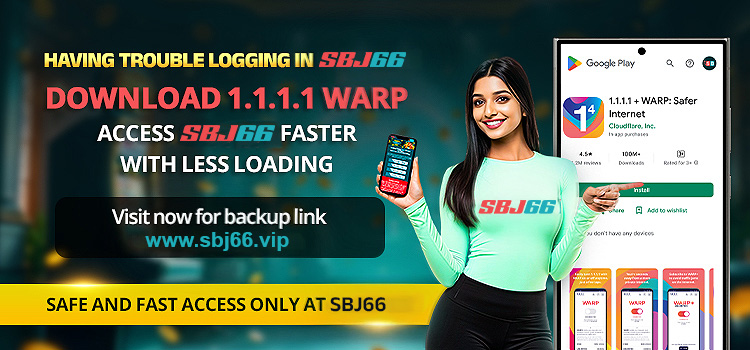
Here are the simple and easy steps to download the 1.1.1.1 WARP app:
➢ For Android Phones
- Go to the Google Play Store and look for 1.1.1.1 + WARP: Safer Internet. Or just “ Click Here ” to open the download page of 1.1.1.1 WARP.
- There will be an install button; you need to tap on install and open the app once installed successfully.
- A page will show up. Tap on the Next button, and do not forget to read the privacy policy. After reading, tap Accept.
- Now, tap on Install VPN Profile, then tap OK.
- To enable, turn on the WARP to Connected.
➢ For iOS Phones
- Go to the App Store and look for 1.1.1.1 + WARP: Safer Internet. Or just “ Click Here ” to open the download page of 1.1.1.1 WARP.
- Tap the Get button to download the app.
- Tap the VPN app and agree to the privacy policy or terms of service.
- Now, tap on the “Install VPN Profile” and then tap the OK button
- To enable, turn the WARP to Connected.
How to Apply 1.1.1.1 WARP?
Once you have finished downloading and installing the app, do the following:
- 1. Launch 1.1.1.1 WARP.
- 2. Tap WARP Mode:
- On the home screen, you will find a big toggle button.
- Press the toggle to alternate between 1.1.1.1 only (DNS mode) and 1.1.1.1 with WARP.
- WARP supports encrypting all your traffic, and it is safer and stable, which is very practical to connect to platforms such as SBJ66.
- 3. When WARP is turned on, you should receive a message that says Your internet is private, and the 1.1.1.1 WARP key icon should be present in the status bar of your phone, which confirms the 1.1.1.1 WARP is connected and can be used.
- 4. Now, you can finally visit https://sbj66.vip or any other official SBJ66 site and enjoy playing games without issues!


