


Yes, it’s completely free with no installation or sign-up fees required.
Archives: FAQs
Is SBJ66 APP available in Google Playstore?
Please be aware that our app is not yet available on Google Play, but you can download it directly using the link below:
What is the SBJ66 APP file size?
The SBJ66 app has a file size of only 6.80 MB, and you can download it from the link below:
Download SBJ66 App📱
How do I know if my device is compatible with the SBJ66 app (Android)?
The SBJ66 app is compatible with Android 5.0 or higher, or you can play using the Google Chrome browser.
How can I clear SBJ66 app (Android) cache and app data?
To clear the cache and app data, follow these steps:
- Open the “Settings” menu.
- Scroll down and tap on “Apps”.
- Select “Manage Apps” and choose the SBJ66 app.
- Tap on “Clear Data” and “Clear Cache”.
Can I login to my SBJ66 account on 2 devices at the same time?
Please note that our application can only be used on one device at a time.
What web browsers does the SBJ66 site support?
For the best experience while playing 🏏Cricket, we recommend using Chrome on Android or Safari on iPhone. If you’re using an Android 📱 device, you can also download the SBJ66 app 🈸 for enhanced performance.
Do I need to change any browser configurations?
We recommend removing the app from your mobile, reinstalling your browser, and then reinstalling the app. You can also try clearing the mobile browser cache to improve performance.
How to Clear Browser Cache:
- Open the Chrome app on your Android phone or tablet.
- Tap the More icon (three dots) at the top right.
- Tap History, then select Clear browsing data.
- Choose a time frame at the top; to clear everything, select All Time.
- Check the boxes for “Cookies and site data” and “Cached images and files”.
- Tap Clear data to finish.
This should help resolve any issues you’re encountering!
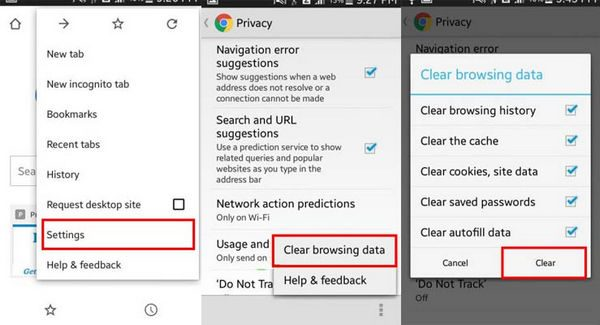
What should I do if the website fails to load?
This is an uncommon issue, but you can try the following troubleshooting steps:
Clear your browser’s cache, as many issues are linked to cached data. Problems often occur when your browser stores too much outdated information, which can prevent web pages from loading correctly. As you browse, your device saves data, and an overloaded cache can cause page loading errors.
If the provided steps do not resolve the issue, please reach our 24/7 customer support team and provide us with details as below:
- Username
- Website URL
- Browser
- IP address
- Current location
- Telco Provider
- Software
- Screenshots of the specific issue or error message
What can I do if the web page is being redirected to another website or being DNS hijacked?
If you are being redirected to another website after visiting ours, follow these steps to manually fix the local DNS:
Step-by-Step Guide:
- Click the [Start] button in the bottom left corner of your desktop and select [Settings].
- Go to [Network and Internet], then click [Network and Sharing Center].
- Click on [Change adapter settings].
- Right-click the active network connection and select [Properties].
- Select [Internet Protocol Version 4 (TCP/IPv4)], then click [Properties].
- Choose [Use the following DNS server addresses], and input:
- Preferred DNS server: 8.8.8.8
- Alternate DNS server: 8.8.4.4
- Click [OK] to apply the changes.
Note: If the issue persists even after updating the DNS, you can refer to the following link for further support: https://support.microsoft.com/en-us/kb/972034